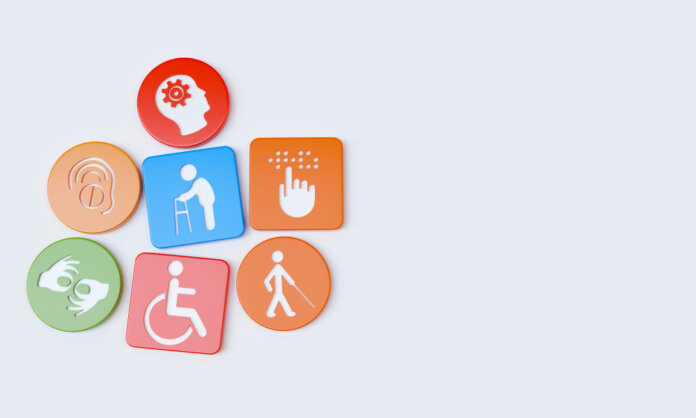
Accessibility is not an extra feature you bolt on at the end. It is a design approach that helps more people play your game comfortably, including players with visual, auditory, motor, cognitive, or situational limitations. For student projects, accessibility also signals maturity: it shows you can think beyond your own play style, plan constraints, and ship responsibly.
In school teams, time is always the enemy. You are juggling classes, deadlines, and a team that is learning as it builds. That is why minimum viable accessibility matters: a small set of high-impact choices that you can implement without derailing production.
If you have ever used Paperwriter services to tighten an essay under a deadline, the principle is similar: you focus on the essentials that dramatically improve outcomes. For accessibility, the essentials are settings and design decisions that remove the most common barriers with the least engineering overhead.
This checklist is meant to be practical. You can adopt it on a tiny prototype, a capstone project, or a jam game. Pick the items you can do now, document what you cannot do yet, and iterate.
Define Minimum Viable Accessibility for Student Games
Minimum viable accessibility (MVA) is a baseline that prevents players from being blocked by avoidable barriers. It is not a complete solution for every disability, and it does not require expensive tech. Think of MVA as making it playable and understandable for more people using configurable options and clear feedback.
A useful way to frame MVA is: Can a player adjust inputs, read the game, understand feedback, and make progress without pain? If the answer is “yes, mostly,” you have done real work.
Also, treat accessibility like any other design requirement. Add it to your backlog, assign owners, and test it early. Otherwise, it becomes a last-minute scramble that feels like a paper writing service rescue rather than a planned part of development.
Controls and Input: Reduce Friction First
Controls are the fastest way to increase accessibility because small changes can unlock the game for players with motor limitations, different hardware, or situational constraints (e.g., playing on a laptop trackpad, playing one-handed, etc.).
Aim for these minimums:
- Remappable controls for keyboard and controller (or at least remappable critical actions).
- Hold vs toggle options for actions like sprint, aim, crouch, ADS, or interaction.
- Adjustable sensitivity (mouse/controller) with invert Y option.
- Input buffering and forgiveness where appropriate (especially in platformers and action games).
- No “must mash rapidly” gates without alternatives (hold-to-repeat, slower input mode).
If you cannot build a full remapping UI, you can still support remapping through a simple config file or a small in-game menu with a limited set of rebinds. In student work, “imperfect but usable” is better than planned but not shipped.
Visual Accessibility: Make Information Legible
Most student games fail accessibility through readability: small fonts, low contrast UI, color-only signals, or cluttered feedback. These issues are common because teams optimize for aesthetics and forget that players vary widely in screen size, lighting, vision, and attention.
Start with readability fundamentals:
- Scalable UI text (at least small/medium/large).
- High contrast mode or stronger contrast defaults for menus and HUD.
- Avoid color-only communication (add shapes, labels, patterns, icons).
- Clear focus states (selected button, hovered item, active menu section).
- Camera options: FOV slider for 3D, screen shake toggle, motion blur toggle.
If you only do one thing here, implement larger text and stronger contrast. Those two changes alone can dramatically reduce friction for many players.
Audio, Captions, and Feedback: Make Meaning Redundant
Audio carries critical information in many games: enemy cues, success/failure stingers, timing signals, dialogue, and environmental storytelling. If audio is the only channel for that information, you are excluding players who are Deaf/hard-of-hearing, playing on low volume, or playing in noisy environments.
Minimum steps:
- Captions/subtitles for dialogue and essential narrative beats.
- Separate volume sliders for master, music, SFX, and voice.
- Visual alternatives to audio cues (icons, screen edge indicators, text prompts, vibration cues on controller).
- Caption clarity with speaker tags where useful, and short descriptions for important non-speech sounds when feasible.
Even limited captions help, especially when they cover instructions and mission-critical dialogue. When time is tight, prioritize captions for tutorial text, objectives, and anything that blocks progress.
Cognitive Load and UX: Make the Game Easier to Learn
Accessibility also includes cognitive accessibility: reducing confusion, overload, and unnecessary complexity. Student projects often include unclear objectives, inconsistent interactions, and tutorial dumps that overwhelm players.
Here is a minimum viable accessibility checklist you can paste into your task board:
- Offer a tutorial replay or “controls reminder” screen.
- Provide clear objective text and a way to reopen it.
- Use consistent interaction language (do not switch between “Use,” “Interact,” “Open” randomly).
- Include difficulty options or at least adjustable damage/timing windows.
- Allow pause during dialogue/cutscenes and re-read recent text.
- Add error prevention: confirmation prompts for destructive actions, and undo where possible.
- Reduce clutter: limit simultaneous UI callouts, prioritize the next action.
These are not just nice to have. They improve comprehension for everyone, including experienced players learning your systems for the first time.
Testing, Documentation, and Portfolio Value
Accessibility becomes real when it is tested, not just promised. Student teams do not need a full lab. You need lightweight checks and feedback loops.
Practical testing ideas:
- Five-minute readability test: can a player read all UI at the typical viewing distance?
- No-audio test: can a player complete the tutorial with sound muted?
- One-handed test: can you play the core loop with limited input?
- Color stress test: simulate common color vision deficiencies and check key signals.
Document what you did and what you did not do. In a portfolio, this is powerful because it shows intentionality and ethics, not just implementation. It can also distinguish you from candidates who only talk about mechanics. If your team used a structured write-up similar to what you’d see in college paper writing services, that clarity helps reviewers quickly see the “before/after” impact of your accessibility work.
A simple accessibility section on each portfolio project can include:
- Implemented accessibility features (with screenshots)
- Known limitations (honest, short)
- What you would do next with more time
- Testing method and outcomes
Conclusion: Ship the Baseline, Then Iterate
You do not need to solve accessibility perfectly to take it seriously. Minimum viable accessibility is about removing the most common blockers with high-leverage design and settings: readable UI, flexible controls, caption support, reduced cognitive overload, and basic testing.
If you build these habits into your student workflow, you will ship better projects, reach more players, and strengthen your portfolio with evidence of professional judgment. Accessibility is not only good ethics. It is a good design, and it is one of the clearest ways to demonstrate maturity as a game creator.

